Give your brain
a little paper.
Handwritten sticky notes for Windows. Keep a thought, check off a little task, and carry on with your day.
Unsigned preview. Installation details
A satisfying
little peel.
Pull a corner. Lift the whole note. Carry it with your cursor, then click to stick it somewhere new.
Your hand sets the pace. A short pull settles back into place. Escape brings a carried note home.
Try the lower-left corner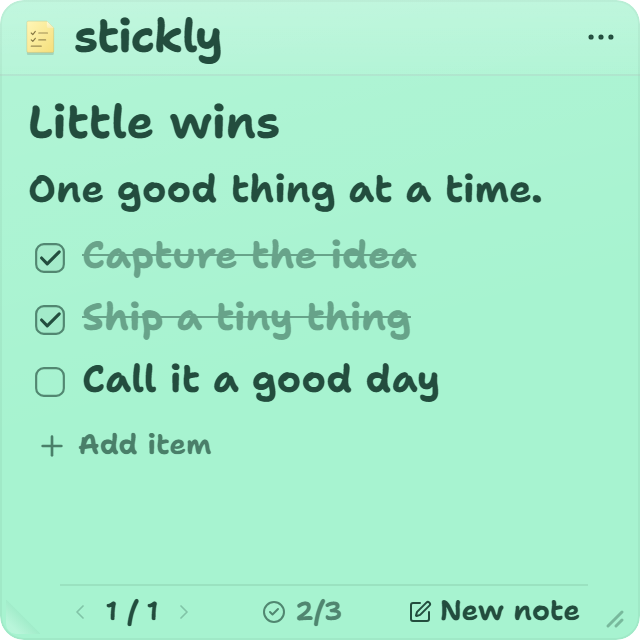
A little space
on your desktop.
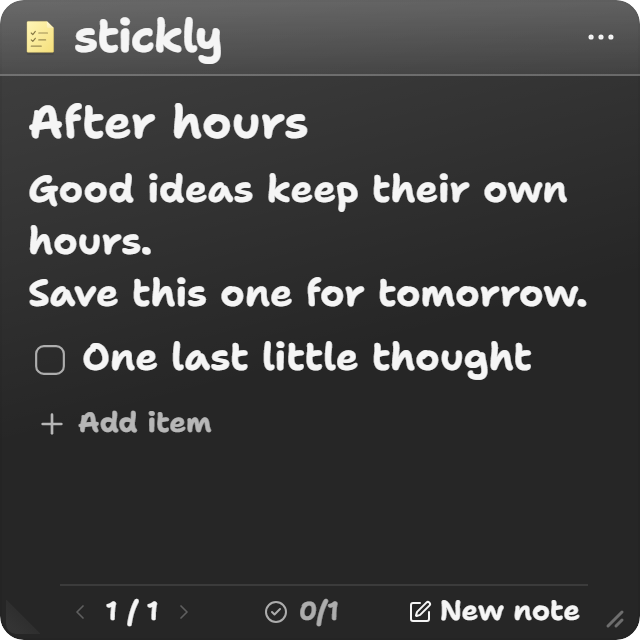
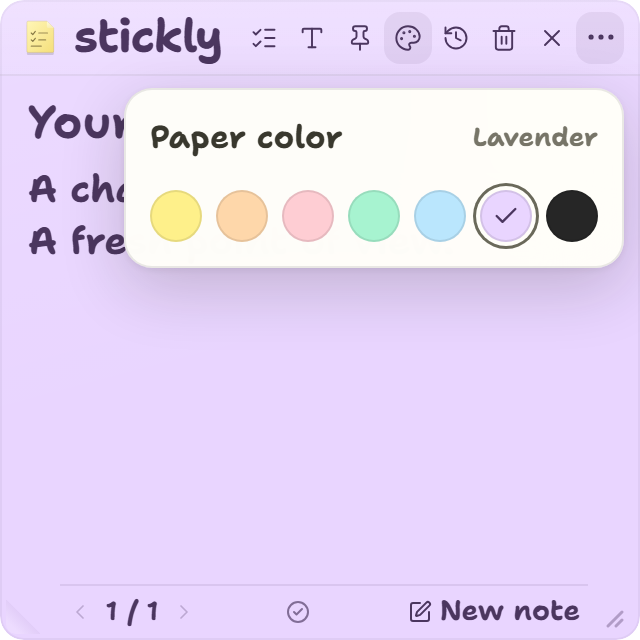
Keep the next thing in sight while you do the actual work. Pin it above your windows, or use Alt + N to get it out of the way.
A quick introduction, with sound and captions. Open the video.
A little setup.
Then you’re in.
No terminal. No dev tools.
Just a normal Windows setup file.
Your first little note
- Download Stickly-Setup.exeFor Windows x64
- Open it and follow setup.Installs for your Windows account.
- Open Stickly. Write something.Find it in Start or on your desktop.
Does Stickly work offline?
Yes. Everyday note taking works offline, with no account or application server. Setup may need internet to install Microsoft WebView2 if your PC does not already have it.
Is Stickly free to download?
Yes. The Windows preview is free to download and use. There is no subscription or sign-in.
Which computers can run it?
The current download is for Windows x64 and has been tested on Windows 10 Pro 22H2. Other Windows versions have not been separately validated. macOS and Linux versions are not distributed or verified. This is an unsigned early preview.
Where do my notes go?
The desktop app saves notes, tasks and settings in %APPDATA%\stickly\data.json on your PC. A previous-save backup sits beside it. These JSON files are not encrypted, and there is no cloud sync.
Can I just write, without a to-do list?
Absolutely. Start with a plain note, then add checklist items only when you want them. You can have both on the same page.
Can I have more than one note?
Yes. Use New note and the small page arrows to switch between notes in one desktop window. Separate note windows are not available yet.
Can I keep a sticky note always on top?
Yes. Expand the Stickly toolbar and select the pin to keep its window above other windows. Alt+N shows or hides the app. All your notes share that one window.
Are reminders available?
Yes. In Stickly 0.2.0, choose Remind me from a task’s menu. The footer bell lists reminders and offers Snooze 10 min, Done, and Dismiss for due items. Keep Stickly running in the tray; missed reminders appear when you reopen it. Windows settings may suppress notifications.
Let it
stick.
A good idea. A tiny task. That thing you keep forgetting. Give it a little paper.
Free Windows preview. Your notes stay on your PC.