Small note.
Good company.
Stickly is a Windows desktop sticky note app for quick thoughts and optional checklists. Here is what the current preview can do.
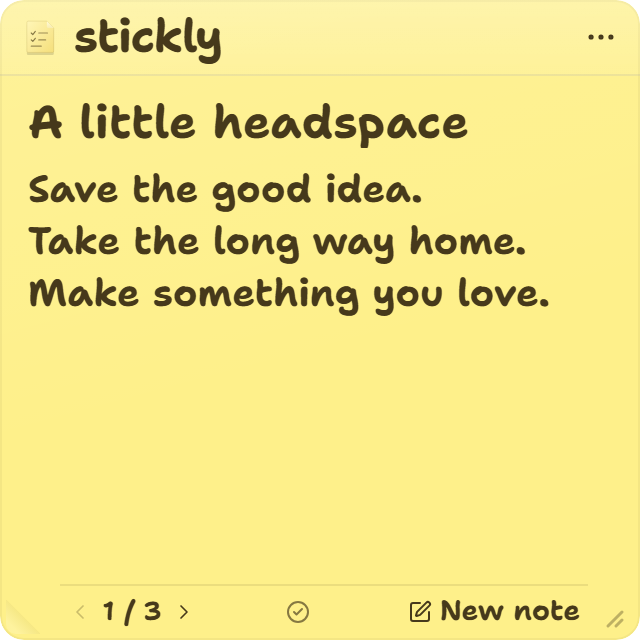
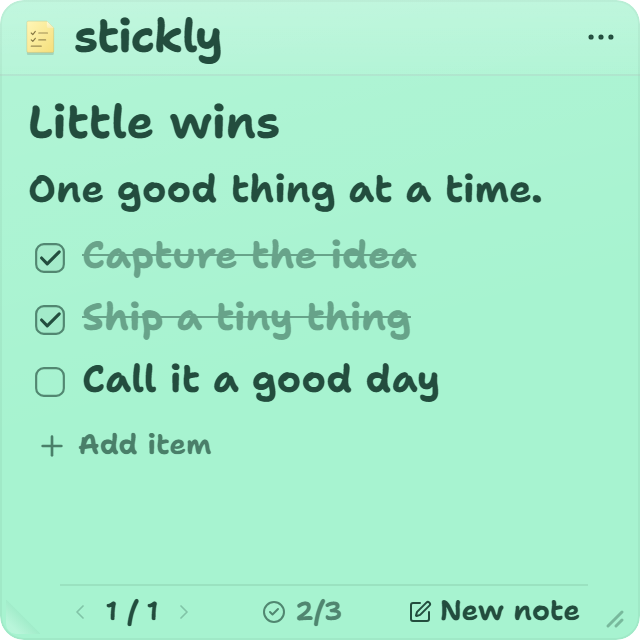
Write first. List later.
Give a note a title and write freely in its multiline editor. Add checklist items when a thought turns into something to do. Edit tasks inline, check them off, reopen them, or remove them.
Writing uses bundled Shantell Sans Bold. Press Ctrl + B to switch the active note text or task to ExtraBold.
Paper with personality
Choose classic yellow, pastel peach, blush pink, mint green, sky blue, lavender, or charcoal. Each note keeps its own color and Small, Medium, or Large text size.
Collapse the toolbar to give your writing more room. The compact page controls let you keep several notes in one desktop window.
Peel, carry, place
Drag the lower-left corner until the whole sheet lifts. The fold follows your movement. Release, move to a new spot, then click to apply the note there. A short pull settles back; Escape cancels a carried note.
You can also move the window by dragging the header, logo, or blank paper. Use the lower-right grip to resize it.
Keep it in sight
Pin Stickly to keep it above other windows. Press Alt + N to show or hide it. The tray menu has Show/Hide, New Note, and Quit.
Create a note with Ctrl + N or New note, then use the small arrows to switch pages. Closing the window hides it to the tray.
A little look back
History brings completed tasks and archived notes together. Restore a task or a whole note when you need it again. You can also delete a note from the expanded toolbar, with confirmation.
Saved on your PC
Everyday writing works offline. Stickly saves notes, tasks, colors, text sizes, archive history, pin state, and window position locally, with a previous-save backup. There is no account, application server, or cloud sync.
Read where your notes are stored and how to make a backup.
A little focus
Choose Add to Today from a task’s menu, then open the footer sun. Today brings up to three active priorities together across notes. Unfinished priorities carry over without creating duplicate tasks.
A timely nudge
Choose Remind me from a task’s menu to set a time. The footer bell lists scheduled and overdue reminders. Due items offer Snooze 10 min, Done, and Dismiss.
The Windows scheduler runs while Stickly is open or in the tray. If the app is quit or the PC sleeps, overdue reminders are caught when it resumes. Windows settings can suppress notifications; due items remain visible in the app.
Put things in order
Drag a task’s grip to reorder it. Keyboard users can focus the grip and press Alt + Up or Down. Move up and Move down are also available from the task menu. Order saves with the note.
What is still coming?
Repeating tasks, separate note windows, cross-device sync, saved window size, and automatic updates are not available yet.
The public roadmap tracks ideas. It is not a release schedule.