Sticky notes,
always on top.
To keep a Stickly note above other windows, expand the toolbar and select the pin. Your note stays in sight while you work in a browser, editor, or another ordinary desktop window.
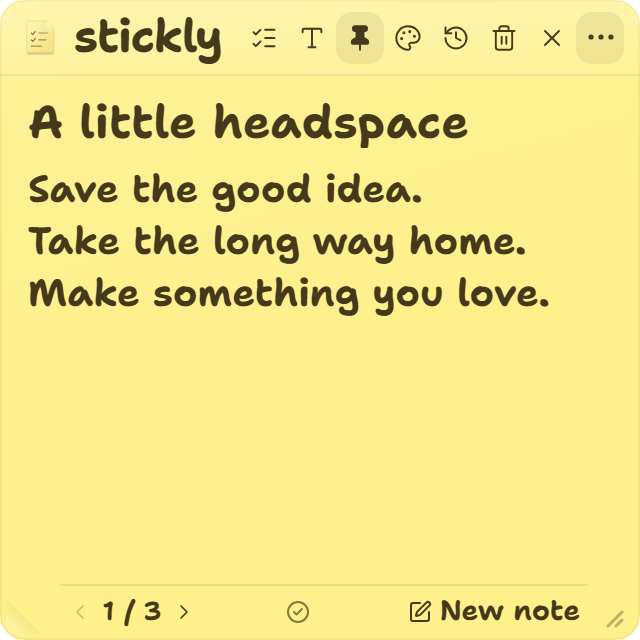
Pin a Stickly note
- Install Stickly and open it from Start or the desktop shortcut.
- Select the three-dot control to expand the toolbar.
- Select the pin. Leave the note open, then switch to the window you are working in.
Select the pin again to turn always-on-top off. Pinning applies to the app window, including whichever note page you are viewing.
Use Alt + N when you want to hide Stickly or bring it back. The tray menu also has Show/Hide. Closing the note hides the app; it does not delete your writing.
Give it a little room
Resize from the lower-right grip. Move the window by dragging its header, logo, or blank paper. You can also pull the lower-left corner until the whole note lifts, carry it with the cursor, and click to apply it somewhere new.
Use the small page arrows to switch notes. The current preview uses one window for all notes, rather than separate floating windows for each page.
Using Microsoft notes?
Check which experience you have. The newer OneNote Sticky Notes experience has a pin on a popped-out note, as described in Microsoft’s update announcement. Classic Sticky Notes and the OneNote experience have different controls.
If your version has no pin, Microsoft PowerToys Always On Top can pin an active window. Its default shortcut is Windows + Ctrl + T; use it again to unpin.
Pinning an app to the taskbar gives you a launcher. It does not make the note stay above other windows.
If a note disappears
In Stickly, first press Alt + N or choose Show/Hide in the tray. Then check the pin. If the note was archived, open History and restore it.
Always-on-top does not mean a window can cover every system screen or every other topmost application. If you are using PowerToys, Microsoft documents compatibility limits for some remote-desktop and virtual-machine windows on its utility page.