Sticky notes,
with checkboxes.
In Stickly, start with a plain note, then expand the toolbar and select Add a task. Checklists are optional, so a thought and its next steps can share the same little page.
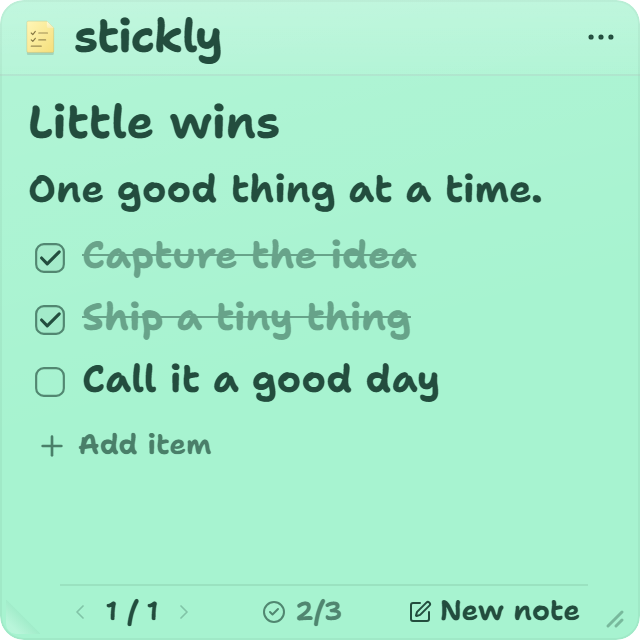
Make a little list
- Open a note and write a title or a few lines of context.
- Expand the three-dot toolbar and choose Add a task.
- Write the task. Press Enter from a task line to add another, or select Add item.
- Select a checkbox when you finish. The task dims and gets a handwritten strikethrough.
Click a task’s text to edit it. Select its checkbox again if it needs another go. A task’s three-dot menu contains Delete task and Move up/down. You can also drag its grip, or focus the grip and press Alt + Up or Down to reorder it.
Make it easy to read
Open Text size in the expanded toolbar and choose S, M, or L. Each note keeps its own size. Writing uses Shantell Sans Bold; Ctrl + B changes the active note text or task to ExtraBold.
Paper color offers classic yellow, pastel peach, blush pink, mint green, sky blue, lavender, and charcoal. Charcoal uses light writing on dark paper.
Resize the window from the lower-right grip. Collapse the toolbar when you want more space for writing. The current preview does not save the window size between sessions.
Keep the next thing close
Select the pin to keep the Stickly window above other windows. Use Alt + N to show or hide it. For more detail, see always-on-top notes.
New note or Ctrl + N creates another page. The small bottom arrows switch pages inside the same window.
Bring a task back
- Expand the three-dot toolbar and open History.
- To save the current note for later, choose Archive this note.
- To bring an item back, choose Restore beside its completed task or archived note.
Clear all history permanently removes completed tasks and archived notes after confirmation. Archiving keeps a note for later. Deleting a note from the trash control is different: it has confirmation, but there is no deletion undo. Closing the window hides the app rather than deleting the note.
Pick today's focus
Open a task’s menu and choose Add to Today. Use the footer sun to see up to three active priorities from across your notes. Unfinished priorities carry over; completing one frees a slot. Your original notes keep the tasks.
Will it remind me later?
Yes, from version 0.2.0. Open a task’s menu, choose Remind me, then set a date and time or a quick reminder. The footer bell lists all reminders. Due items offer Snooze 10 min, Done, and Dismiss.
Keep Stickly running in the tray for Windows notifications. Quitting stops the scheduler; missed reminders are caught on reopening or after sleep. Windows can suppress toasts, so due items also remain in the app. The website sample shows in-app reminders only.
Notes and task progress save locally on your Windows PC. See offline notes and backups for the details.